Get started on iPhone
Open the App Store product page on your iPhone. Check device compatibility, confirm the price, and follow the system purchase flow. Refer to the listing for system requirements; this page can't guarantee compatibility with a particular device. If you've already purchased the app, first check whether the Apple ID currently in use is the one used for the original purchase.
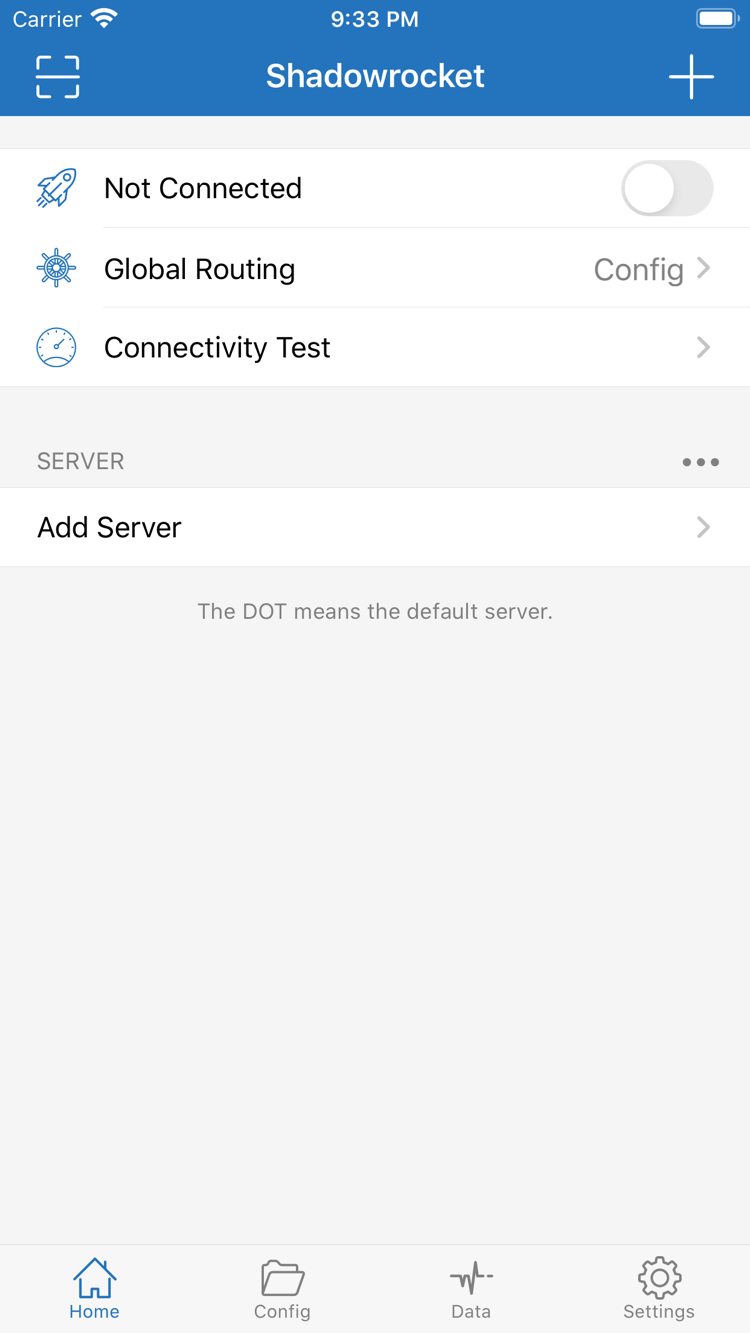
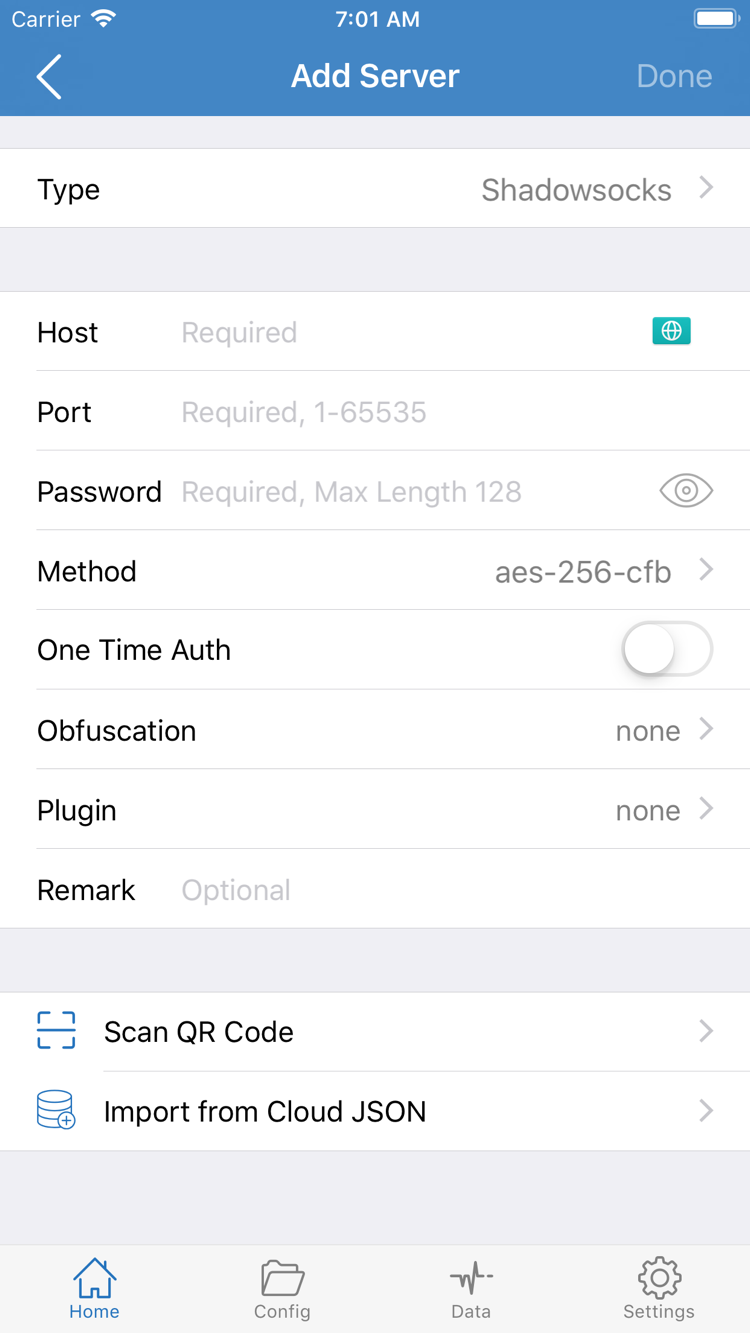
After opening the app, use Home to check the connection status and existing servers. Buying the app grants use of the client; you'll still need your own subscription or server details. To enter details manually, use Add Server and fill in the fields from your server information. Don't guess the address, port, or authentication details based on a screenshot.
When you first try to connect, the system may ask you to add a VPN configuration. This is an authorization step that lets the app use the system's network connection features, not an additional purchase. Confirm the prompt comes from the Shadowrocket app you just installed and verified, then follow the system instructions. If you're not ready to connect, read the setup guide and review the configuration before authorizing.
Authorization doesn't mean the connection is ready to use. Return to Home, select the correct server, check Global Routing, and review the connection status. See the setup guide for the full sequence. If something goes wrong, note the system prompt and interface labels to help distinguish purchase, configuration, and connection issues.