Shadowrocket Setup Guide
Complete a basic setup in this order: add a service, choose a route, connect, and verify access. Check the result at each step before moving on; there is no need to change every setting at the outset.
These are official App Store screenshots, provided to help identify screens and fields. Your device's current interface takes precedence; example entries shown in the screenshots are not usable service details.
STEP 01 / IMPORT
Add Server: Add a Server or Import a Subscription
Open Shadowrocket and go to Home. First identify the type of information you have: if it is a complete link used to update a server list, import it using Subscribe; if it contains a protocol, server address, port, and authentication details, add it as a single server. These serve different purposes. Do not paste a subscription link into Host or treat a website address as a subscription URL.
If You Have Details for a Single Server
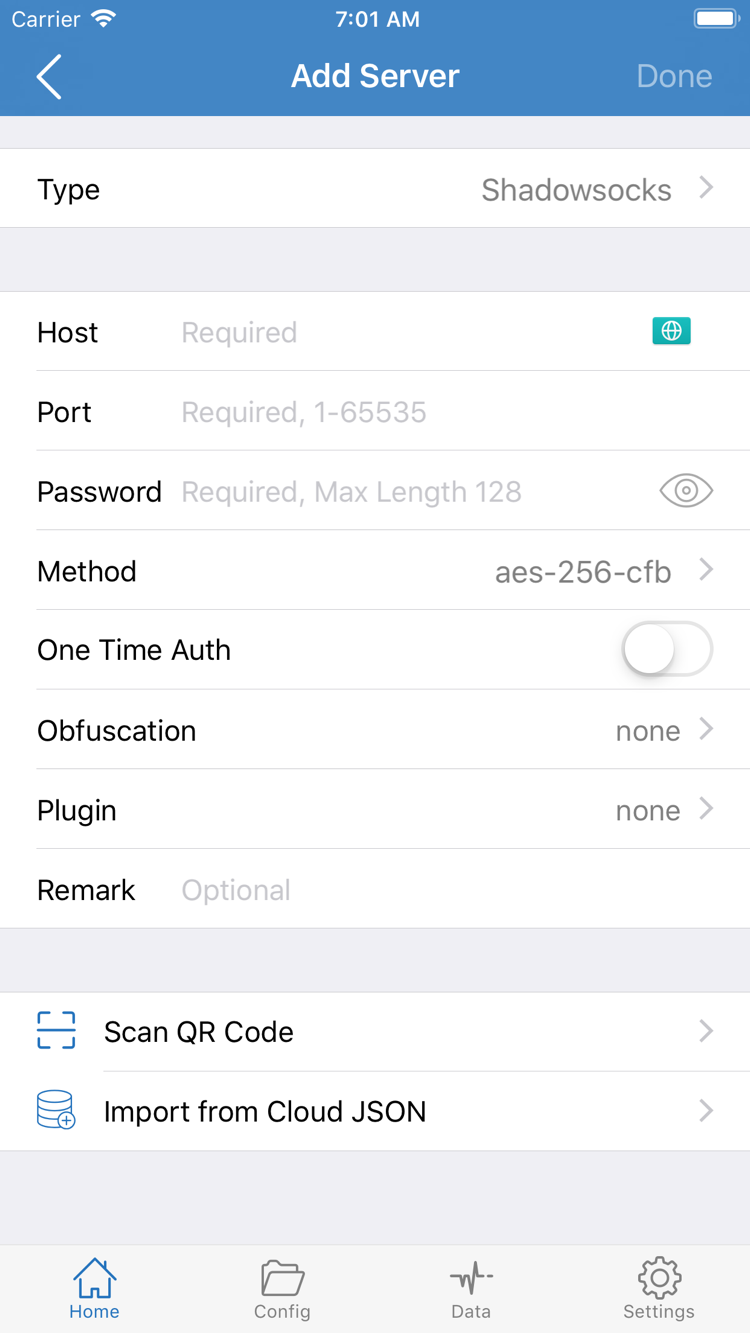
- On Home, tap Add Server to open the add screen. Choose a Type that matches your server details. The Type determines which fields appear. If you choose the wrong type, the connection may fail even when the address and port are correct.
- Enter the supplied Host and Port. Host is the server's hostname or address, not a subscription link. Port is the port used by the corresponding service. After pasting, check for spaces or line breaks at the beginning or end.
- Fill in the authentication fields required for that Type. In the official screenshot, Password and Method are shown for the selected Type; other types may display different fields. Match the authentication details, encryption method, and other connection parameters to your existing service information. Do not substitute values just because their names look similar.
- After checking the details, save and return to Home. Confirm the new entry appears under SERVER, then tap the server you want to use. Seeing the entry only confirms that the details were saved; verify connectivity in the following steps.
If You Have a Subscription Link
In Add Server, choose Subscribe under Type and paste your complete subscription link into the URL field. Save and return to Home. Wait for the import to finish, then expand the relevant group to check whether the servers have appeared. If they have not loaded, use the update action for that subscription entry to try again. Do not create multiple copies of the same subscription just because the first request takes a while.
A subscription link may contain access credentials. Store it somewhere secure, and do not include it in public screenshots, comments, or troubleshooting records. Do not remove parameters from the link; line breaks introduced by a messaging app or an incomplete copy can also cause import failures. Once the update succeeds, select an existing server before choosing a routing mode. Updating a subscription is not the same as updating a Config file: the former mainly changes server details, while the latter can affect rules and other settings.
Scan QR Code is for scanning a valid server QR code you already have; Import from Cloud JSON is for importing the corresponding format. Neither option can read arbitrary text. If you are unsure of the format, check the original data before trying different import options. See Troubleshooting for more about import formats and update issues.
STEP 02 / ROUTING
Global Routing: Choose Config, Proxy, or Direct
Once the server is saved and selected, return to Home and tap Global Routing. This controls the overall routing mode for traffic; it does not select a protocol or fix incorrect server details. The three modes are Config, Proxy, and Direct. Before choosing one, understand what each mode does and pick the one that matches your current test.
Config: Apply the Rules in the Active Configuration
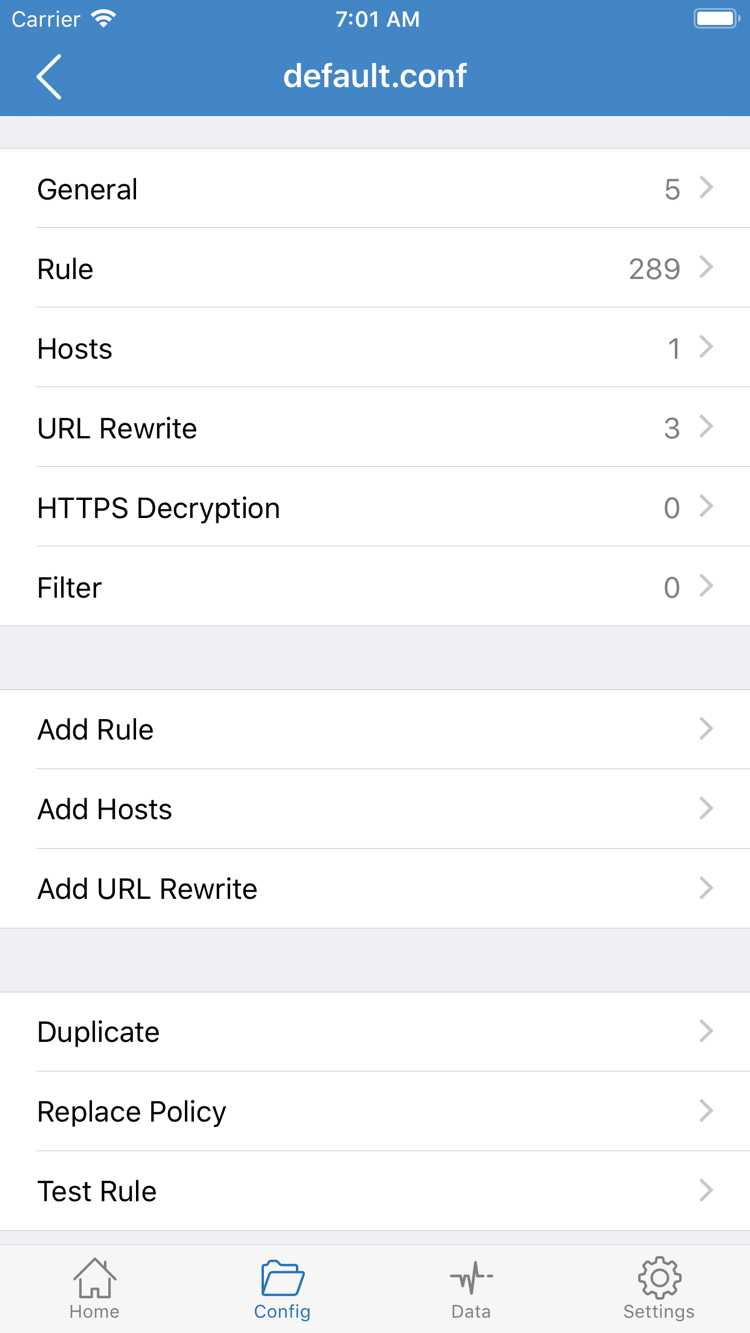
With Config selected, traffic is handled according to the active configuration. Open Config to confirm which configuration is in use, then review its Rule section. The official screenshot shows a configuration editor with sections such as General, Rule, and Hosts, along with an Add Rule option. It helps identify configuration contents; it is not the Global Routing menu itself.
Rules are generally evaluated in order, and the first matching rule determines the policy for a request. PROXY sends traffic through the applicable proxy policy; DIRECT connects directly. So with Config selected, it may be expected for some websites to use a proxy while others connect directly. Before checking the active configuration, do not assume that a website bypassing the server means the connection has failed.
[Rule]
DOMAIN-SUFFIX,example.com,PROXY
FINAL,DIRECT
This is only an example of rule syntax: example.com and its subdomains match PROXY; unmatched requests fall through to FINAL,DIRECT. It is not a complete configuration, and you do not need to copy it over your existing settings.
Proxy and Direct: Choose a Mode for a Specific Test
Proxy routes requests handled by the app through the selected proxy mode and can also be useful for a temporary comparison. Selecting a server does not guarantee access to every website; the server, DNS resolution, or the destination site may still have issues. Direct connects relevant traffic without using the selected proxy server, making it useful for checking whether your existing network works normally.
For everyday rule-based routing, use Config once you have confirmed the configuration is valid. To check whether a failure is related to the rules, note the current mode, temporarily switch to Proxy, and retry the same destination. Restore the original mode afterward. Change only the routing mode—not the server and configuration at the same time—so the comparison is meaningful. Continue with Troubleshooting for more on routing rules.
STEP 03 / CONNECT
Home: Turn On the Connection
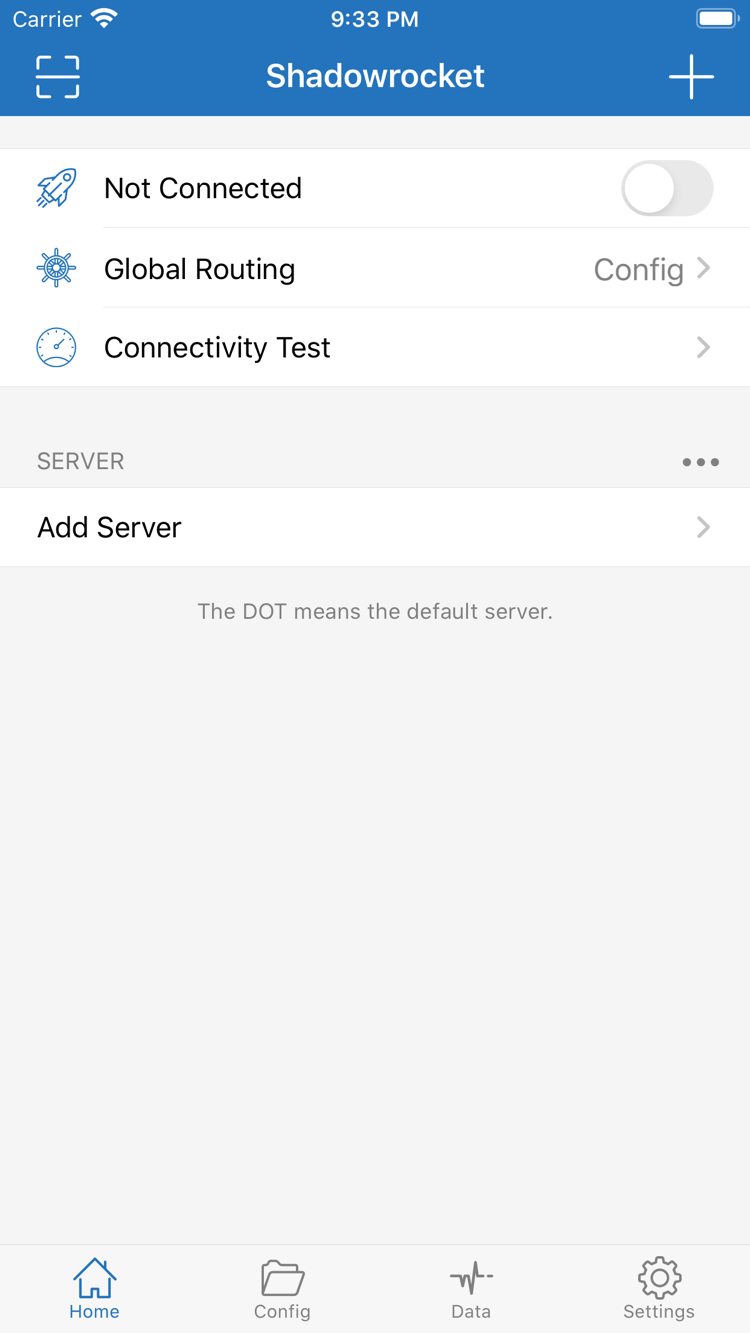
Return to Home for a final check before connecting: the intended server is selected under SERVER, Global Routing shows the mode you chose, and—if using Config—the expected configuration is active in Config. Turning on the connection switch cannot supply missing service details if no valid server is selected.
- Tap the connection switch at the top of Home. In the official screenshot, Not Connected indicates that it was disconnected when the screenshot was taken. During setup, check whether the status changes.
- The first time you connect, the system may prompt you to add a VPN configuration. Review the prompt, confirm it was triggered by the action you just started, then allow it through the system flow and complete any required device verification.
- Return to Shadowrocket and wait for the connection status to settle. If the switch turns off immediately or a connection cannot be established, do not toggle it repeatedly. Continue to the troubleshooting steps below.
System VPN authorization allows the app to create the relevant network connection configuration; it does not mean you have purchased or obtained a server service. Authorization and access to a remote server are separate: the former is confirmed by the device system, while the latter depends on the imported details, your current network, and the remote service's status. After the connection status changes, verify actual access in the next step.
If another VPN connection is already active, check in system settings which connection is currently in use to avoid it being replaced during testing. You do not need to enable On Demand for the first test. Establish a repeatable manual connection first, then explore automatic connection conditions if needed.
On iPad, follow the same checks for Home, server selection, and system authorization. The layout may vary with the available screen space, but the relevant checks remain the selected server, Global Routing mode, and connection status—not the fixed position of an item in a screenshot.
STEP 04 / VERIFY
Connectivity Test: Check the Test and Access Results
Once the connection switch stays on, use Connectivity Test on Home to check the server's test results. The test can provide clues about connectivity, but results depend on the test method, destination, and network conditions at the time. A single reading cannot guarantee access to every website, and a timeout should be assessed alongside real requests. Do not delete a server based on one test result alone.
Check These Three Things Separately
- First, check that the connection stays on. Return to Home and confirm the status has not reverted to disconnected. If the switch will not stay on, resolve authorization or connection setup issues first; it is too early to assess website routing rules.
- Next, test actual access. Open a browser and make a new page request to a website you are authorized to access and want to test. Do not rely on a page that was already loaded or cached, or use the VPN indicator in the device status bar alone to judge remote access.
- Finally, check that the routing policy matches your expectations. With Config selected, check the active rules to see whether the destination should use PROXY or DIRECT. With Proxy selected, check the chosen server. With Direct selected, do not expect requests to pass through the selected proxy server.
For additional clues, open Data to check traffic changes during testing. An increase in total traffic only shows that traffic was counted; it does not prove every request for a particular webpage used the same policy. Modern websites may request resources from multiple domains. If the main page loads but images or sign-in requests fail, check the relevant domains and rules rather than only the name in the address bar.
If the same destination works with Proxy but fails with Config, check the configuration and rule order first. If both modes fail, but other commonly used websites work with Direct, focus on the server details, remote service availability, and DNS issues. Keep the destination and network the same while changing one condition at a time to avoid mistaking temporary fluctuations for a configuration issue.
STEP 05 / DIAGNOSE
Settings: Troubleshoot One Failure Stage at a Time
When something goes wrong, first identify the step where it failed. A subscription that will not import, a server that fails its test, a connection that will not stay on, and access problems on only some websites each point to different checks. Do not change every switch in Settings or overwrite Config straight away. Record what happened first and keep one known-good comparison path.
Subscription Import Failed or the List Did Not Update
Check the complete link in the subscription entry and confirm that it is still valid, in a supported format, and reachable over the device's current network. Subscription requests generally also need a working underlying network connection; do not assume that enabling a failed connection will restore a subscription automatically. Check that the device date and time are correct, then try updating once more. If the update fails, the old list may remain, so seeing existing entries does not confirm that this update succeeded.
If the information comes from your own service, check that it is still valid and review its usage conditions. Do not try to fix the issue by repeatedly adding the same link. Keep only the necessary error text in troubleshooting records; do not share a complete subscription URL, authentication details, or a QR code containing credentials.
Server Is Listed, but the Test or Connection Fails
First check that Type, Host, Port, and authentication details match your existing service information, paying particular attention to missing characters, an incorrect port, or a mismatched Method. Then disconnect and use a familiar website to check that Wi-Fi or cellular data is working. If a public network requires web sign-in, complete its access steps first.
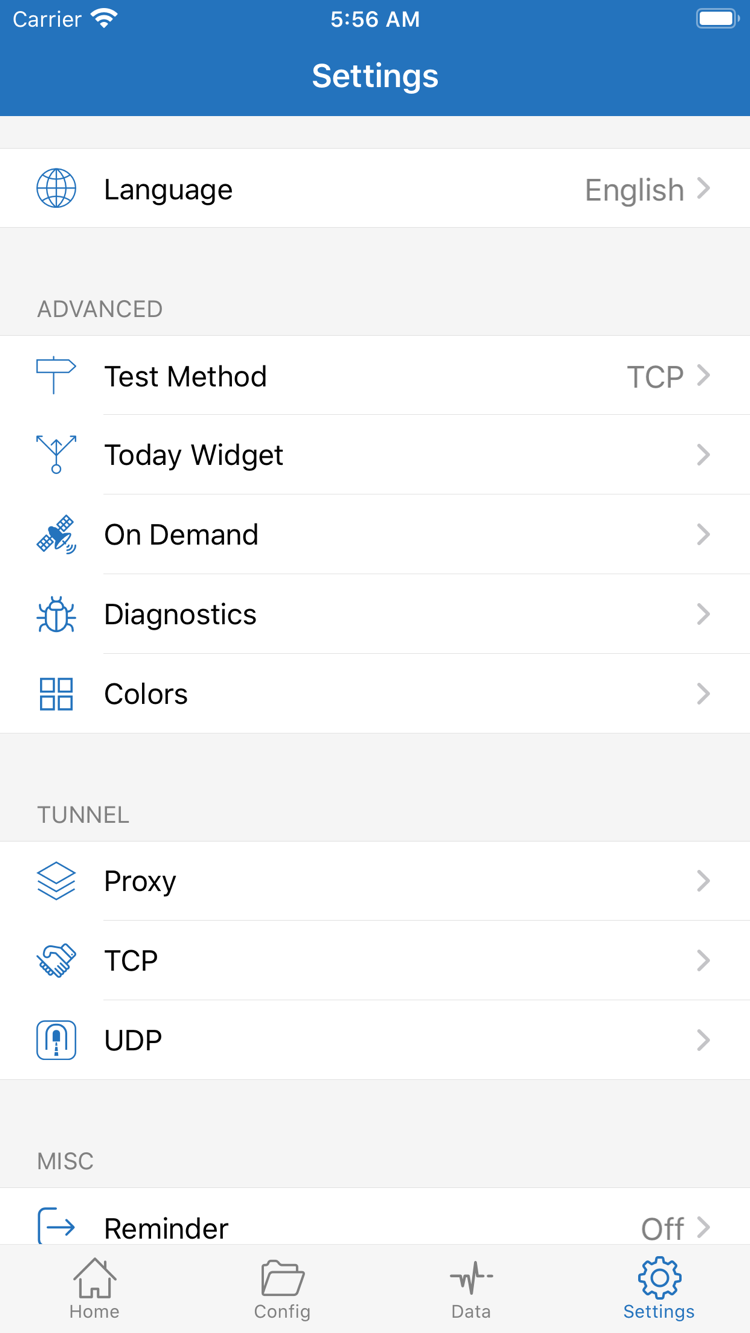
Open Settings to find test-related options such as Test Method. Results from different test methods are not directly comparable as if they were the same metric. Keep one method selected for repeated tests, then compare the results with actual website access. When switching networks, keep the server and destination the same to avoid changing multiple conditions at once.
The Switch Will Not Stay On, or the Connection Restarts Automatically
Check the VPN configuration and authorization status in the system, and confirm that another connection is not replacing the current one. If the connection starts again after you turn it off, check whether On Demand is enabled and review its conditions. For manual troubleshooting, note the original settings, then temporarily disable the relevant automatic connection behavior so the connection state does not change during testing. Closing the app screen does not necessarily disconnect the network; return to Home or system settings to confirm the actual status.
Only Some Websites Have Problems
Return to Global Routing and use the comparison method above to distinguish a rules issue from a server issue. If the issue is specific to Config, first check the active configuration, Rule order, and fallback policy. For domain resolution issues, check the relevant DNS settings. Do not enable HTTPS Decryption or make sweeping changes to Proxy, TCP, or UDP just to fix one webpage; these are not required for a first connection.
Diagnostics is available for further investigation. Before sharing diagnostic records, remove server authentication details and subscription credentials, and keep only the information needed to identify the failure stage. For more on subscription updates, DNS, and rules, see Troubleshooting. For store regions, purchases, or restoring purchases on a new device, read the App Store Guide; changing connection settings will not resolve purchase issues.
First-Setup Completion Checklist
Return to Home and confirm that only the intended server is selected, Global Routing matches your usual needs, and the connection remains active. After completing a real request, restore any temporary comparison mode to its intended setting. You do not need to enable every feature just to finish setup; keep changes to a minimum and make sure each one has a clear purpose and a verifiable result.
- Your existing subscription updates successfully, and its source and validity have been confirmed.
- Your choice of Config, Proxy, or Direct matches the current access goal.
- The connection status, Connectivity Test, and actual access have each been checked.
- Subscription links and authentication details are not visible in public screenshots or troubleshooting records.
If an issue comes up later, return to the relevant failure stage on this page, then see Troubleshooting. Use the App Store for app purchases and reinstalling the app. Check the validity of your existing server or subscription using your own service details; these are separate matters.