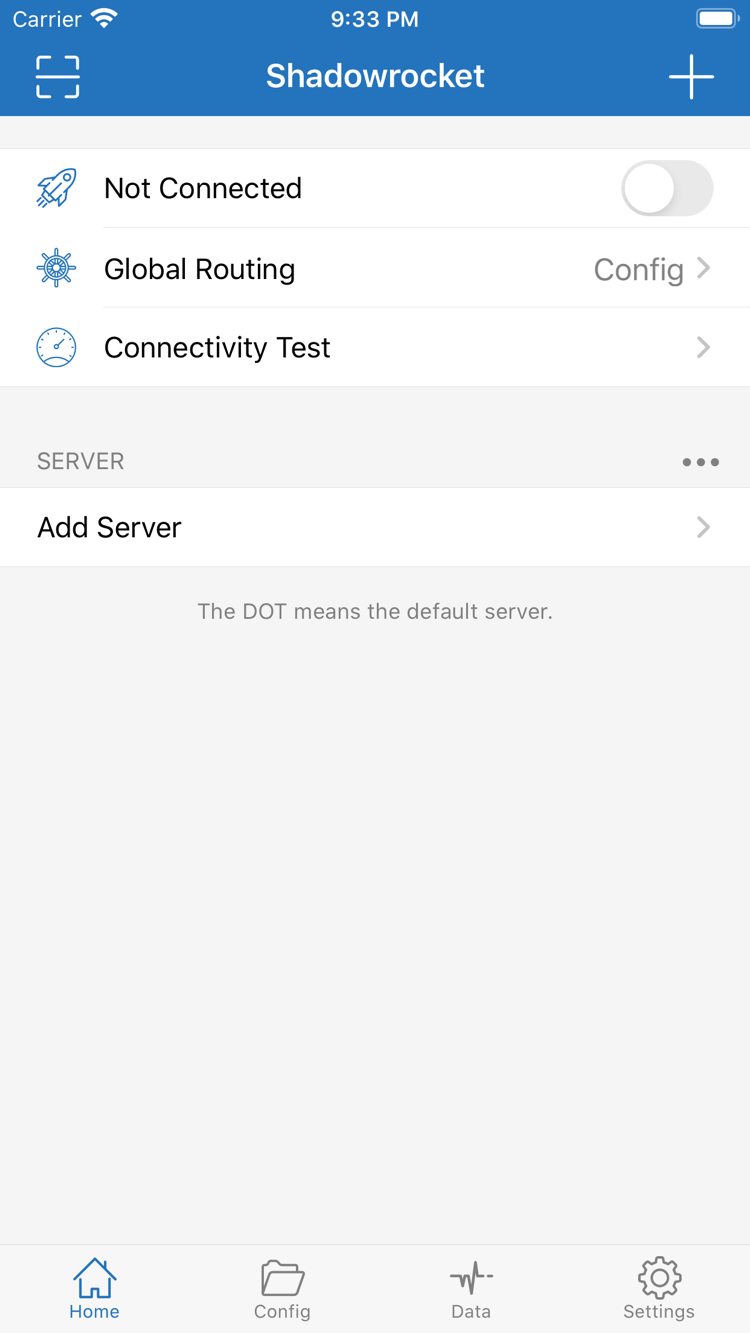
Global Routing: Choose a Routing Mode First
Open Global Routing in Home and choose Config, Proxy, or Direct for your needs. Config routes requests according to the currently enabled configuration; Proxy handles traffic through a proxy; Direct connects directly. To check whether rules are working, first select Config, then verify the enabled file and its matching policies. Changing the routing mode does not verify server details; proxy policies still depend on a working server you already have.
[Rule]
DOMAIN-SUFFIX,example.com,PROXY
FINAL,DIRECT
On Demand: Configure After Manual Connection Testing
On Demand triggers connections based on conditions you configure. Find the relevant options in Settings. First disable automatic triggers and confirm that your existing server works with a manual connection. Then add conditions one at a time and test them on the network you actually use. On Demand controls when a connection starts; it does not fix server addresses, authentication details, or rules. If the connection turns back on after you disconnect, check these conditions and the system VPN status instead of repeatedly changing configuration files.
[Rule]
FINAL,DIRECT
Rule: Match Specific Traffic Before Setting a Fallback
Manage routing rules in the Rule section of Config. Rules are typically checked from top to bottom, and the matching policy is applied. DOMAIN-SUFFIX matches a specified domain suffix; DOMAIN-KEYWORD matches a keyword in the domain; FINAL handles requests not matched by earlier rules. To send only specific sites through PROXY, place their rules first, then use FINAL,DIRECT as the fallback. Keep a copy of the original file before editing. When testing, check the actual request domain and avoid using a URL path as a domain rule.
[Rule]
DOMAIN-SUFFIX,example.com,PROXY
DOMAIN-KEYWORD,example,PROXY
FINAL,DIRECT
Multiple Protocols: Match Type to Server Details
In Add Server, select Type first, then enter the details from your existing server. Protocols such as Shadowsocks, VMess, VLESS, and Trojan use different authentication fields; the same Host and Port do not make them interchangeable. After importing from a link or QR code, check the protocol type, address, port, and other options. A PROXY rule selects a proxy policy; it does not specify a protocol. Check rules and server details separately.
[Rule]
DOMAIN-SUFFIX,example.com,PROXY
FINAL,DIRECT
Subscribe: Import and Refresh an Existing List
If you already have a subscription link, choose Subscribe in Add Server and enter the complete link. After importing, check that the list appears, then select a server and test it. Refreshing a subscription retrieves the list again; it does not extend the service period. If an update fails, check in order that the link is complete and still valid, the network can reach it, and the device date and time are correct. Subscription links may contain credentials; do not share them publicly. A server list and a Config rules file serve different purposes: importing one does not enable the other.
[Rule]
DOMAIN-SUFFIX,example.com,PROXY
FINAL,DIRECT
Config: Check Which File Is Enabled
Config manages rules and related settings. After importing a file, check which item is enabled, then set Global Routing to Config to test the rules as intended. You can review sections such as General, Rule, and Hosts. Change and test one type of setting at a time to make issues easier to isolate. Adding a server and enabling a configuration are separate steps; do not overwrite the original file with content you do not understand. The snippet below illustrates rule syntax only. Its example domains are for demonstration and are not a substitute for your own destination list.
[Rule]
DOMAIN-SUFFIX,example.com,PROXY
GEOIP,CN,DIRECT
FINAL,DIRECT